
How to Cash In at PH Sabong
Five steps from your Credits tab to a completed GCash deposit. Every step has a screenshot from the platform.
Updated 19 September 2026 · Independent information, not the operator
Loading credits is the first thing every new player does, and it takes about five minutes. This page walks through a GCash deposit on the platform, using screenshots of the real screens. The steps are the same on any phone, whether you use Android or iPhone.
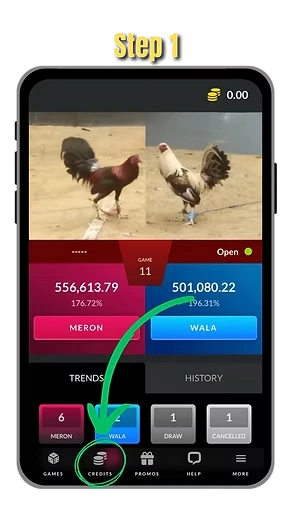
Step 1. Open Credits
Log in to your account and tap Credits in the bottom menu. The Credits tab is where every deposit and withdrawal starts.
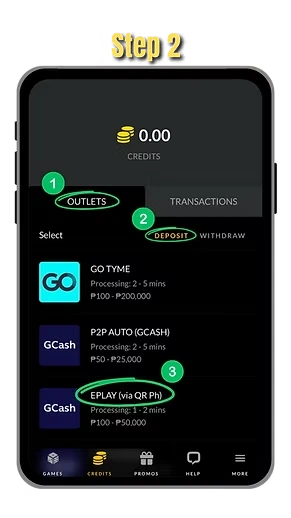
Step 2. Choose Deposit and an outlet
Tap Outlets, then Deposit. Pick EPLAY (via QR Ph). GO TYME and P2P AUTO (GCash) are also listed, each with its own limits and processing time.
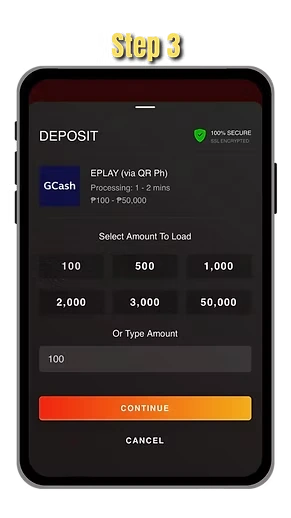
Step 3. Enter the amount
Select 100, 500, 1,000, 2,000, 3,000 or 50,000, or type your own amount. Tap Continue.
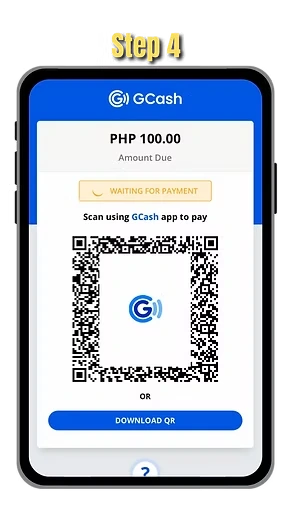
Step 4. Scan the GCash QR
A GCash QR page shows the amount due. Scan it with the GCash app or tap Download QR, then confirm the payment.
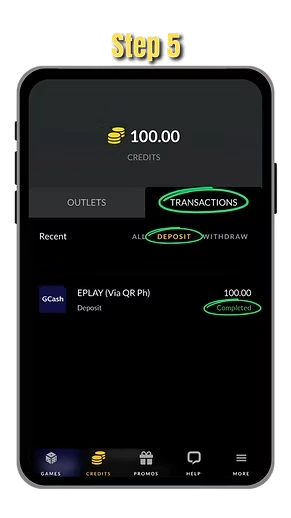
Step 5. Check your credits
Open Transactions and Deposit. When the status reads Completed, your credits are updated.
Deposit stuck?
Open Help inside the app and start a live chat. Send your account number or email, your name and a screenshot of the payment.
How live support works
Deposit options at a glance
The Outlets list shows every payment channel that is open for you. These were the options and limits shown in the app when we wrote this page.
| Outlet | Limits | Processing |
|---|---|---|
| EPLAY (via QR Ph) | ₱100 – ₱50,000 | 1 – 2 mins |
| GO TYME | ₱100 – ₱200,000 | 2 – 5 mins |
| P2P AUTO (GCash) | ₱50 – ₱25,000 | See app |
Limits, outlets and times can change without notice. Always trust the figures inside your account over any website, including this one.
Before you deposit: a quick checklist
- Your GCash app is updated and you can open it. Sign in first so you are not fumbling with an OTP while the QR code is on screen.
- Your GCash wallet has enough balance for the amount you want to load.
- You are on the official platform page. Read the address bar before you press anything.
- You have decided your budget for the day. Load only that amount.
Which amount should you start with?
The deposit screen offers quick amounts of 100, 500, 1,000, 2,000, 3,000 and 50,000, and a box where you can type your own. If this is your first time, start with ₱100. It is enough to see the whole flow, from QR code to Completed status, without risking much. Once you have seen your credits arrive, you can decide what feels right for your budget.
How to pay the GCash QR code
The QR page shows the amount due and a status badge that reads Waiting for payment. You have two ways to pay. If you are on a different device, open GCash on your phone and scan the code on the screen. If the QR is on the same phone as your GCash app, tap Download QR, then open GCash, choose Scan QR and pick the saved image from your gallery. Do not change the amount when GCash asks you to confirm. The amount must match what the deposit page shows.
Common deposit problems and fixes
- Status stays on Waiting for payment. You may not have completed the payment inside GCash. Open GCash, check your recent transactions and finish the payment if it is still open.
- GCash says the QR is invalid or expired. Go back, start a new deposit and scan the fresh code. Old QR codes should not be reused.
- Paid, but credits have not arrived. Wait for the processing time shown for that outlet, then open Transactions and the Deposit tab. If it is still not Completed, contact live chat and send a screenshot of your GCash receipt.
- Deposit failed. Check your GCash balance and daily limits, then try again with a smaller amount or another outlet.
What to send live chat
Support can help faster when you give them the right details in one message: your account number or email, your name, the amount, the time you paid and a screenshot of the GCash receipt. Read more on our live support page.
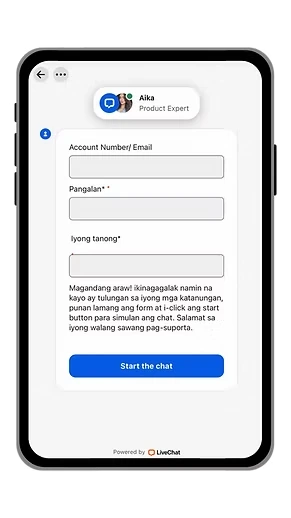
Live chat support in the app
If a deposit is pending, a withdrawal is slow or you cannot log in, open Help in the app and start a live chat. A support agent replies in the chat window.
- Fill in your account number or email.
- Add your name and your question.
- Tap Start the chat.
Deposit safety
- Never pay a deposit to a person or a personal GCash number that a stranger sends you. Real deposits are made inside your account through the Outlets screen.
- Never share your GCash MPIN or OTP. Nobody who works for a platform or for GCash needs it.
- Ignore messages on Facebook, Telegram or SMS that promise free credits if you deposit first.
After your deposit
Once your credits show, you can watch the live matches and learn how to read Meron and Wala. When you want to take money out, see how withdrawals work. Set a spending limit first and read our page on responsible gaming.
Deposit not working?
Read our page on GCash deposit problems for fixes to pending, failed and missing deposits.
Log in and cash inHow long does a GCash deposit take?
EPLAY (via QR Ph) showed 1 to 2 minutes and GO TYME showed 2 to 5 minutes in the app. Most deposits complete once your GCash payment goes through.
What is the minimum deposit?
Minimums depend on the outlet. EPLAY (via QR Ph) showed ₱100 and P2P AUTO (GCash) showed ₱50 when we wrote this page. Check the app for current limits.
Where can I see if my deposit is done?
Open Credits, then Transactions, then the Deposit tab. A deposit that is finished shows the status Completed.
My GCash was charged but credits are missing. What now?
Wait for the processing time, then contact live chat inside the platform with your account number, your name and your GCash receipt.